Latest Entries »

Showing posts with label protocol. Show all posts

How to Know the IP address of a Person on Facebook

How to Know the IP address of a Person on FACEBOOK

This technique works when you are chatting with that person. The first demand of operation is to close all of the website and Messengers that you are using, even clean History and delete Cookies as precaution.


Now start chatting with that person.


The first thing you do is to open start->run->cmd.exe now in it type following command:


netstat –an


and wait and watch the foreign address will be the IP address


If u like the post do comment !!

.: How to configure Internet Connection Sharing in Windows XP :.

.: How to configure Internet Connection Sharing in Windows XP :.


How to use Internet Connection Sharing

To use Internet Connection Sharing to share your Internet connection, the host computer must have one network adapter that is configured to connect to the internal network, and one network adapter or modem that is configured to connect to the Internet.

On the host computer

On the host computer, follow these steps to share the Internet connection:
  1. Log on to the host computer as Administrator or as Owner.
  2. Click Start, and then click Control Panel.
  3. Click Network and Internet Connections.
  4. Click Network Connections.
  5. Right-click the connection that you use to connect to the Internet. For example, if you connect to the Internet by using a modem, right-click the connection that you want under Dial-up.
  6. Click Properties.
  7. Click the Advanced tab.
  8. Under Internet Connection Sharing, select the Allow other network users to connect through this computer's Internet connection check box.
  9. If you are sharing a dial-up Internet connection, select the Establish a dial-up connection whenever a computer on my network attempts to access the Internet check box if you want to permit your computer to automatically connect to the Internet.
  10. Click OK. You receive the following message:
    When Internet Connection Sharing is enabled, your LAN adapter will be set to use IP address 192.168.0.1. Your computer may lose connectivity with other computers on your network. If these other computers have static IP addresses, it is a good idea to set them to obtain their IP addresses automatically. Are you sure you want to enable Internet Connection Sharing?
  11. Click Yes.
The connection to the Internet is shared to other computers on the local area network (LAN). The network adapter that is connected to the LAN is configured with a static IP address of 192.168.0.1 and a subnet mask of 255.255.255.0

On the client computer

To connect to the Internet by using the shared connection, you must confirm the LAN adapter IP configuration, and then configure the client computer. To confirm the LAN adapter IP configuration, follow these steps:
  1. Log on to the client computer as Administrator or as Owner.
  2. Click Start, and then click Control Panel.
  3. Click Network and Internet Connections.
  4. Click Network Connections.
  5. Right-click Local Area Connection, and then click Properties.
  6. Click the General tab, click Internet Protocol (TCP/IP) in the This connection uses the following items list, and then click Properties.
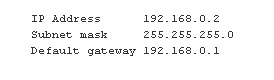
  7. In the Internet Protocol (TCP/IP) Properties dialog box, click Obtain an IP address automatically (if it is not already selected), and then click OK. Note You can also assign a unique static IP address in the range of 192.168.0.2 to 192.168.0.254. For example, you can assign the following static IP address, subnet mask, and default gateway:
      1. In the Local Area Connection Properties dialog box, click OK.
      1. Quit Control Panel.

To configure the client computer to use the shared Internet connection, follow these steps:
  1. Click Start, and then click Control Panel.
  2. Click Network and Internet Connections.
  3. Click Internet Options.
  4. In the Internet Properties dialog box, click the Connections tab.
  5. Click the Setup button. The New Connection Wizard starts.
  6. On the Welcome to the New Connection Wizard page, click Next.
  7. Click Connect to the Internet, and then click Next.
  8. Click Set up my connection manually, and then click Next.
  9. Click Connect using a broadband connection that is always on, and then clickNext.
  10. On the Completing the New Connection Wizard page, click Finish.
  11. Quit Control Panel.
When you now start Microsoft Internet Explorer, the client computer will try to connect to the Internet by using the host computer's shared Internet connection.

Troubleshooting

When you turn on Internet Connection Sharing on the host computer, the host computer's LAN adapter is automatically assigned the IP address of 192.168.0.1. Therefore, one of the following situations may occur:
  • IP address conflict Each computer on the LAN must have a unique IP address. If more than one computer has the same IP address, an IP conflict occurs, and one of the network adapters turns off until the conflict is resolved. To resolve this conflict, configure the client computer to automatically obtain an IP address, or assign it a unique IP address.
  • Loss of network connectivity If your network is configured with a different IP address range than Internet Connection Sharing uses, you will lose network connectivity with the host computer. To resolve this issue, configure the client computers to automatically obtain an IP address, or assign each client computer a unique IP address in the range of 192.168.0.2 to 192.168.0.254.

.: Recover your All windows password :.

.: Recover your All windows password :.

Hi friends,
here if you are forget your windows user password, don't worry its recover/brake by a software.
Its name is "OPHCRACK". Its open source software (free software).
OPHCRACK
download form here.

some step for recover/brake your password. follow the step and feel free for your lost password

step 1 : download software from here or ophcrack.sourceforge.net/ here.
step 2 : after downloading burn it on cd.
step 3 : Put the cd in the cd rom.
step 4 : Restart the computer and Goto yout BIOS.
step 5 : select BOOT form CD ROM.
step 6 : Again Restart the computer and follow the instruction.
step 7 : Its completed.

Its simple but RISKY.

Note : Do any think on own risk


pls like me Facebook and tell your frnds for like and visit my site if have you any prob mail me on prashant1879@live.com see this on you-tube.

.: How to change the start button text on Windows XP :.

.: How to change the start button text on Windows XP :.


Tired of the boring old “start” button at the bottom left corner of your Windows XP’s monitor? Want something new to replace iit? Well here’s how to change it.

With a few modifications in the Windows Registry, you can replace the “start” text with anything you like. Great for achieving a new, custom look for your Windows XP. So let’s get started.


Warning: this tutorial is more for advanced users, and I'm not responsible if your system gets messed up. Only attempt the following
at your own risk.

Step 1: Modify explorer.exe

If the warning didn’t scare you enough, then the title of this step probably did. Yes, we are going to change Explorer, the backbone of your Windows XP, but don’t worry. Everything should be safe as long as you follow the steps closely.

As explorer is a binary file, we need a special tool to modify it. One of the best ones for this purpose is Resource Hacker. There are of course others that will get the trick done, but we will be using RH this tutorial so I recommend installing it to avoid making mistakes. Install it and let’s continue.

As always before changing anything. you want to back up. So open My Computer and navigate to and look for explorer. Copy paste it to a safe location on your hard drive.

Now that you’ve backed it up, fire up Resource Hacker and find the same explorer.exe.

When you’ve found and opened explorer in RH, navigate to String Table -> 37 -> 1033.

The “start” value is on line 4, after the 578. Change the text “start” to anything you want, making sure you keep the quotes.

In this example. I changed the text to Tech1879.

Press the Compile Script button to make Resource Hacker put together the code.

Now click File and Save the script as explorer.exe. into C: \WINDOWS\inf or another C: \WINDOWS subfolder.

Note: make sure you choose Save AS, NOT just save!!

And that’s all for the first step! Now let’s move onto the second one -modifying the registry.

Step 2: changing the registry.


By now, you have a modified explorer sitting in the /inf/ subfolder, so we need to tell Windows to use that one, instead of the original one still resting untouched.

To do this, we need to make just one simple registry modification. To open up the registry, press start (something else soon ;) ) -> run and type regedit.

In the registry editor window that opens, navigate to HKEY_LOCAL_MACHINE\ SOFTWARE\Microsoft\ Windows NT\ CurrentVersion\ Winlogon and look for the registry entry “shell”. Click it.

Change the explorer.exe to inf/explorer.exe or whereever you saved the modified explorer.

And believe it or not, you’re done! All you have to do now is reboot or log out and bacö in to see the changes. Enjoy your new custom Windows XP start button!


Internet radio on your mobile...

Internet radio on your mobile...


Mundu Radio is now available on Nokia and Java enable phones as well. Enjoy a number of internet radio stations right from your Nokia and Java enable mobiles.

Nokia and Java enable Device Software includes all the applications on your smartphone – email, organizer, media player, browser, calculator, mundu messenger and now the amazing mundu radio.

Mundu radio is feature-packed with rich UI and services like get lyrics, send lyrics, invite friends, managing playlist, dozens of pre-defined digital radio. In addition, if you have Wi-Fi or UMA enabled on your phone, enjoy the amazing Mundu radio without paying any data charges.

Mundu radio currently supports Nokia and Java enable phones.

So get-started and enjoy the exciting world of mundu on your Nokia and Java enable devices.

For download Mundu radio software pls click here...
(register first then download)

TV on mobile...


munduTV is the simplest way to watch TV.
Simple.

We've got whats called Technology Convergance working for us. So when you feel that you've missed out on something, you can just pick up the closest device near you and truly Catch up. Reading newspapers while travelling to work is now a thing of the past! You can watch live television – news, entertainment, sports, or any of your favourite programmes on your mobile phone or desktop, whenever and wherever you are.

Nothing says it like A good Knock Knock

We dont like to harp on but come on, we have

* A rich, seamless, TV-like viewing experience. (Honey, i shrunk the TV!)
* It's Plug and Play. Quick connectivity and less start-up time.
* Have internet. Will play. Service available across all networks – low bandwidth GPRS, 3G, Wi-Fi and broadband Internet.
* If you can type a text, you can use munduTV. The simplest navigation options that let you do Everything without reaching for a remote.
* You can view this no matter what your phone number is. Network operator independent.


The team believes that there's a reason why our product is the future. And we've given you

* Option to Pause live TV. (Go make some popcorn.)
* A personalized experience.(It's Your TV)
* Channel browsing complete with channel logo, quality profile of the content being viewed.
* Integrated Volume control with Quick mute option. (You're in charge)
* Pay once. Single subscription for all your devices – handheld, desktop, laptop.

With many more features lined up, we quote Tolkien yet again, "So it begins."

IF you want to download click here
(first of all need registration)

Downloading SmartMovie for Symbian

Downloading SmartMovie for Symbian


How it works

Locate source
on your hard disk
Load it into
Converter utility
Let PC converter
make it smaller
Transfer to your
mobile phone
Use mobile player
to play the clip

Play your videos on your mobile phone,
anywhere, anytime, you need just a few steps

  • Convert any video file on your PC into a phone-friendly video file
  • Upload video into phone/memory card
  • Play the video in SmartMovie Player installed on your mobile phone

Features

  • Standard AVI format, allowing you to preview converted files on your PC
  • Also plays MP4V, FLV and 3GP file formats
  • Player uses the phone screen in portrait or landscape mode, utilizing the full screen size of the device
  • Rescaling of video to utilize the full screen area
  • Support for subtitles - allowing you to watch movies in different languages
  • Friendly PC converter - preview videos on PC, select parts you want to convert, change conversion quality
  • Converter supports DirectShow codecs, so you may use video codecs downloadable from the internet
  • Fast conversion; on a standard PC conversion is 5x faster than the video clip playback time.
    You'll convert entire movie in just a few minutes
  • Quality rescale algorithm in player, delivering best possible picture quality
  • Customizable video player (brightness, language, volume, and more)
  • User-friendly interface - watch movies, don't waste time configuring obscure settings

Intuitive PC converter

File browser with preview


Comfortable player

Requirements

  • Mobile phone with one of the supported operating systems (Symbian, Windows Mobile)
  • PC with Windows 2000/XP/Vista

Languages

English

Licensing information:

  • Upgrade note for SmartMovie 4.00 and newer: if you purchased SmartMovie version 3.xx, you can upgrade for free if your purchase was made in 2008. We're sorry, we don't offer a free upgrade to SmartMovie 4.xx for older purchases. Proceed here to upgrade from version 3.xx.
  • Your SmartMovie license is transferable to your new device during two years after the purchase, with a maximum of three times. Click here to transfer your purchased license to the new device.
  • We provide technical and customer support for this application for up to two years from the date of purchase.


Supported devices:

Symbian S60 3rd/5th edition:

Nokia: E50, E51, E52, E55, E60, E61, E62, E63, E65, E66, E70, E71, E72, E75, E90, N71, N72, N73, N75, N76, N77, N78, N79, N80, N81, N82, N85, N86, N91, N92, N93, N95, N96, N97, 3250, 5230, 5235, 5320, 5500, 5530, 5630, 5700, 5730, 5800, 6110, 6120, 6124, 6210, 6220, 6290, 6650, 6710, 6720, 6730, 6760, 6788, 6790, X6, C5-00, C6-00
Samsung: SGH i400, i450, i520, i550, i560, G810, L870, I7110, i8510, i8910

Son Ericsson: Satio

LG: JoY, KT610, KT770


Symbian S60
Nokia: 3230, 6260, 6290, 6600, 6620, 6630, 6670, 6680, 6681, 6682, 7610, N70, N90,

Panasonic: X700, X800

for Full SmartMovie V.4.15 - Craked signed click here

.: Change Google logo :.

.: Change Google logo :.

If you find this trick looks really cool, here’s how to make your own Google Logo Text. Please note that this trick only apply for firefox browser.

  1. First, you need to install the GreaseMonkey firefox add-on

  1. Next, install the required script

  • Once finished, head for Google.

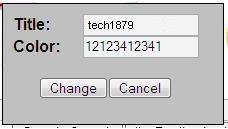
  • Double clicks the Google Logo and a box will appear similar to the figure below.


  • Now, you can type your own text ( letters and space ) and assign different color for each letter.

  • In color edit box, type the numbers: 1 – blue, 2 – red, 3 – yellow, 4 – green or other – random.

  • Click the “Change” button when finished and you will noticed the new Google Logo Text. :D

.: Mobiola® Web Camera :.

.: Mobiola® Web Camera 3 :.

Turn your camera phone into a high quality wireless (WiFi or Bluetooth) or wired (USB) web camera. Mobile phone as webcam with Mobiola® Web Camera 3


http://image.wareseeker.com/software/Windows-Widgets/Webcams/details_mobiola-webcam-lite-1.0.jpg

Main Functionality

  • Transforms your mobile phone into a high-quality PC webcam.
  • Connects mobile phone to PC using USB, WiFi (select models) and Bluetooth connectivity.
  • BlackBerry Storm supported (USB connection).
  • Wi-Fi support for BlackBerry phones.
  • High Video transmission speed.
  • Screen Capture functionality, when device screen can be demonstrated on PC real-time.
  • Cool video effects. Have fun and impress your friends!
  • Works with Skype, Yahoo, YouTube, MSN, AOL IM, ICQ and many others as standard USB webcam.
  • Compatible with Symbian S60 and UIQ, Windows Mobile 5 and 6, Blackberry.
Watch Video about Mobiola™Web Camera
Thank you for your interest! Try Mobiola® webcam and start using your camera phone as webcam!

for more detail click here
& Download trial and Full

Its password is MOBIOLA_FULL

.: Fring- make FREE mobile calls, video call & live chat :.

.: Fring- make FREE mobile calls, video call & live chat :.


fring is a free mobile application that lets users communicate with friends on popular networks over their mobile phone's internet connection.

fring users make free mobile calls, video calls, live chat & more, from their mobile phone with all their friends on fring & other internet services like Skype®, MSN Messenger®, GoogleTalk™, AIM®, ICQ® , Facebook® & Twitter, all through one central, integrated phone book. See the full feature list here.

fring is completely free. It's free to download and free to use to make calls, video calls, instant messages and more, all via your mobile phone's internet connection (over 'IP').

fring has millions of users on 1000s of supported mobile devices across approximately 200 countries, and is growing exponentially – adding more than half a million new users every month. Start fringing today!

Download fring free now.

How can fring be free?
fring uses your mobile device's internet to let you keep in touch without breaking the bank. fring relies on your data plan/Wi-Fi for chats, calls and video calls. fring does not use your valuable voice minutes or SMS.


for more detail and download Fring click here
.: Free send SmS to your phone :.

hello frnd,

here you send free SmS to your frnd mobile without any charges.
here some some website links click on it and register and send free SmS.


www.160by2.com
m.160by2.com


logo
www.smsez.com


www.sms7.in


SendSMSnow.com - Free SMS Worldwide,USA,Canada,India,Bulgaria,Austria,Brazil,Croatia,Czech Republic,Denmark,Estonia,Fiji,France,Germany,Ghana,Greece,Israel,Japan,Lebanon,Lithuania,Malaysia,Maldives,New Zealand,Norway,Oman,Pakistan,Poland,Singapore,Spain,Switzerland,Tanzania,Ukraine
www.sendsmsnow.com


Free SMS
www.smsseva.com


FreeSMS8
www.freesms8.com

Send Free SMS from MyCantos
www.mycantos.com


SMSCountry - A Bulk SMS provider
www.smscountry.com


Bulk SMS India @ SMSjunction
www.smsjunction.com


SMSNow.in
www.smsnow.in


www.freesms2mobile.com

www.seasms.com
 
Ask a Question on Tech1879