Latest Entries »

Showing posts with label firewall. Show all posts

.: How to configure Internet Connection Sharing in Windows XP :.

.: How to configure Internet Connection Sharing in Windows XP :.


How to use Internet Connection Sharing

To use Internet Connection Sharing to share your Internet connection, the host computer must have one network adapter that is configured to connect to the internal network, and one network adapter or modem that is configured to connect to the Internet.

On the host computer

On the host computer, follow these steps to share the Internet connection:
  1. Log on to the host computer as Administrator or as Owner.
  2. Click Start, and then click Control Panel.
  3. Click Network and Internet Connections.
  4. Click Network Connections.
  5. Right-click the connection that you use to connect to the Internet. For example, if you connect to the Internet by using a modem, right-click the connection that you want under Dial-up.
  6. Click Properties.
  7. Click the Advanced tab.
  8. Under Internet Connection Sharing, select the Allow other network users to connect through this computer's Internet connection check box.
  9. If you are sharing a dial-up Internet connection, select the Establish a dial-up connection whenever a computer on my network attempts to access the Internet check box if you want to permit your computer to automatically connect to the Internet.
  10. Click OK. You receive the following message:
    When Internet Connection Sharing is enabled, your LAN adapter will be set to use IP address 192.168.0.1. Your computer may lose connectivity with other computers on your network. If these other computers have static IP addresses, it is a good idea to set them to obtain their IP addresses automatically. Are you sure you want to enable Internet Connection Sharing?
  11. Click Yes.
The connection to the Internet is shared to other computers on the local area network (LAN). The network adapter that is connected to the LAN is configured with a static IP address of 192.168.0.1 and a subnet mask of 255.255.255.0

On the client computer

To connect to the Internet by using the shared connection, you must confirm the LAN adapter IP configuration, and then configure the client computer. To confirm the LAN adapter IP configuration, follow these steps:
  1. Log on to the client computer as Administrator or as Owner.
  2. Click Start, and then click Control Panel.
  3. Click Network and Internet Connections.
  4. Click Network Connections.
  5. Right-click Local Area Connection, and then click Properties.
  6. Click the General tab, click Internet Protocol (TCP/IP) in the This connection uses the following items list, and then click Properties.
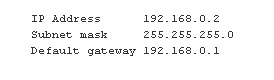
  7. In the Internet Protocol (TCP/IP) Properties dialog box, click Obtain an IP address automatically (if it is not already selected), and then click OK. Note You can also assign a unique static IP address in the range of 192.168.0.2 to 192.168.0.254. For example, you can assign the following static IP address, subnet mask, and default gateway:
      1. In the Local Area Connection Properties dialog box, click OK.
      1. Quit Control Panel.

To configure the client computer to use the shared Internet connection, follow these steps:
  1. Click Start, and then click Control Panel.
  2. Click Network and Internet Connections.
  3. Click Internet Options.
  4. In the Internet Properties dialog box, click the Connections tab.
  5. Click the Setup button. The New Connection Wizard starts.
  6. On the Welcome to the New Connection Wizard page, click Next.
  7. Click Connect to the Internet, and then click Next.
  8. Click Set up my connection manually, and then click Next.
  9. Click Connect using a broadband connection that is always on, and then clickNext.
  10. On the Completing the New Connection Wizard page, click Finish.
  11. Quit Control Panel.
When you now start Microsoft Internet Explorer, the client computer will try to connect to the Internet by using the host computer's shared Internet connection.

Troubleshooting

When you turn on Internet Connection Sharing on the host computer, the host computer's LAN adapter is automatically assigned the IP address of 192.168.0.1. Therefore, one of the following situations may occur:
  • IP address conflict Each computer on the LAN must have a unique IP address. If more than one computer has the same IP address, an IP conflict occurs, and one of the network adapters turns off until the conflict is resolved. To resolve this conflict, configure the client computer to automatically obtain an IP address, or assign it a unique IP address.
  • Loss of network connectivity If your network is configured with a different IP address range than Internet Connection Sharing uses, you will lose network connectivity with the host computer. To resolve this issue, configure the client computers to automatically obtain an IP address, or assign each client computer a unique IP address in the range of 192.168.0.2 to 192.168.0.254.

.: Recover your All windows password :.

.: Recover your All windows password :.

Hi friends,
here if you are forget your windows user password, don't worry its recover/brake by a software.
Its name is "OPHCRACK". Its open source software (free software).
OPHCRACK
download form here.

some step for recover/brake your password. follow the step and feel free for your lost password

step 1 : download software from here or ophcrack.sourceforge.net/ here.
step 2 : after downloading burn it on cd.
step 3 : Put the cd in the cd rom.
step 4 : Restart the computer and Goto yout BIOS.
step 5 : select BOOT form CD ROM.
step 6 : Again Restart the computer and follow the instruction.
step 7 : Its completed.

Its simple but RISKY.

Note : Do any think on own risk


pls like me Facebook and tell your frnds for like and visit my site if have you any prob mail me on prashant1879@live.com see this on you-tube.

.: Change Google logo :.

.: Change Google logo :.

If you find this trick looks really cool, here’s how to make your own Google Logo Text. Please note that this trick only apply for firefox browser.

  1. First, you need to install the GreaseMonkey firefox add-on

  1. Next, install the required script

  • Once finished, head for Google.

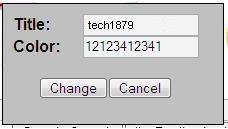
  • Double clicks the Google Logo and a box will appear similar to the figure below.


  • Now, you can type your own text ( letters and space ) and assign different color for each letter.

  • In color edit box, type the numbers: 1 – blue, 2 – red, 3 – yellow, 4 – green or other – random.

  • Click the “Change” button when finished and you will noticed the new Google Logo Text. :D

.: Mobiola® Web Camera :.

.: Mobiola® Web Camera 3 :.

Turn your camera phone into a high quality wireless (WiFi or Bluetooth) or wired (USB) web camera. Mobile phone as webcam with Mobiola® Web Camera 3


http://image.wareseeker.com/software/Windows-Widgets/Webcams/details_mobiola-webcam-lite-1.0.jpg

Main Functionality

  • Transforms your mobile phone into a high-quality PC webcam.
  • Connects mobile phone to PC using USB, WiFi (select models) and Bluetooth connectivity.
  • BlackBerry Storm supported (USB connection).
  • Wi-Fi support for BlackBerry phones.
  • High Video transmission speed.
  • Screen Capture functionality, when device screen can be demonstrated on PC real-time.
  • Cool video effects. Have fun and impress your friends!
  • Works with Skype, Yahoo, YouTube, MSN, AOL IM, ICQ and many others as standard USB webcam.
  • Compatible with Symbian S60 and UIQ, Windows Mobile 5 and 6, Blackberry.
Watch Video about Mobiola™Web Camera
Thank you for your interest! Try Mobiola® webcam and start using your camera phone as webcam!

for more detail click here
& Download trial and Full

Its password is MOBIOLA_FULL

.: How to configure Yahoo account on your nokia phone (N73/N95/...) :.

.: How to configure Yahoo account on your nokia phone (N73/N95/...) :.

here some information about Yahoo on your nokia phone without any software.

(IMP : You must enable POP3 access of yahoo mail account. Hint : Look inside ook inside Setting and POP forwarding Options on yahoo mail web site)
  • Open Messaging Application.
  • Goto Mail box. It asks you no mail defined. Define Now? choose "YES"
  • Mail setup wizard will start. press START to continue.
  • Mailbox Type choose POP3, Press next
  • On next screen type your Email address XXX@YAHOO.COM(IMP: press the Pencil key and highlight your email address then press copy. This will save you typing)
  • Press NEXT
  • Enter pop.mail.yahoo.fr as Incoming mail Server, Press NEXT
  • Enter smtp.mail.yahoo.fr as Outgoing mail server, Press NEXT
  • Acess Point, Choose Always ask or your preferred one , press NEXT
  • In mailbox name keep Yahoo, press NEXT
  • Click FINISH
  • Click Option and then setting
  • Choose E-mail
  • Press on Mailboxes and then on Yahoo
  • Press on connection setting
  • Press on Incoming E-mail
  • Enter Username as XXX@yahoo.com (You may press pencil and then paste)
  • In Password type your password
  • Scroll down to security port and choose SSL/TLS
  • Press back button
  • select Outgoing E-mail, Enter your username and password as described above
  • Scroll down to security port and choose SSL/TLS
  • Hit back button twice
  • Press on User setting
  • Enter your name as you want to display and then go back
  • Goto Retrival Settings
  • Click on E-mail to retrive and setting it to size limit and then enter 100 KB or whatever you like in next screen.Press Ok
  • Click on Back
  • If you have Unlimited GPRS connection then goto automatic retrieval and change it otherwise leave as it is.
  • Click back button multiple times so that you are back to main screen.
  • Now when you start Messaging Application you will see the Yahoo account goto it and retrieve your E-mail.
  • You can also send E-mail attach images,file and etc, Have fun ;)

.: Common types of protocols :.

Common types of protocols


  • FTP (File Transfer Protocol)

  • Telnet (Telnet Remote Protocol)

  • SSH (Secure Shell Remote Protocol)

  • POP3 (Post Office Protocol 3)

  • SMTP (Simple Mail Transfer Protocol)

  • IMAP (Internet Message Access Protocol)

  • SOAP (Simple Object Access Protocol)

  • PPP (Point-to-Point Protocol)

  • RFB (Remote Framebuffer Protocol)

-: This article from Wikipedia

.: 10 tips for improving your wireless network :.

10 tips for improving your wireless network from microsoft


If Windows ever notifies you about a weak signal, it probably means your connection isn't as fast or as reliable as it could be. Worse, you might lose your connection entirely in some parts of your home. If you're looking to improve the signal for your wireless network, try some of these tips for extending your wireless range and improving your wireless network performance.

10 tips for improving your wireless network

1. Position your wireless router (or wireless access point) in a central location

When possible, place your wireless router in a central location in your home. If your wireless router is against an outside wall of your home, the signal will be weak on the other side of your home. Don't worry if you can't move your wireless router, because there are many other ways to improve your connection.

Bad router and good router comparison

2. Move the router off the floor and away from walls and metal objects (such as metal file cabinets)

Metal, walls, and floors will interfere with your router's wireless signals. The closer your router is to these obstructions, the more severe the interference, and the weaker your connection will be.

3. Replace your router's antenna

The antennas supplied with your router are designed to be omni-directional, meaning they broadcast in all directions around the router. If your router is near an outside wall, half of the wireless signals will be sent outside your home, and much of your router's power will be wasted. Most routers don't allow you to increase the power output, but you can make better use of the power. Upgrade to a hi-gain antenna that focuses the wireless signals only one direction. You can aim the signal in the direction you need it most.

Standard antenna and hi-gain antenna examples

4. Replace your computer's wireless network adapter

Wireless network signals must be sent both to and from your computer. Sometimes, your router can broadcast strongly enough to reach your computer, but your computer can't send signals back to your router. To improve this, replace your laptop's PC card-based wireless network adapter with a USB network adapter that uses an external antenna. In particular, consider the Hawking Hi-Gain Wireless USB network adapter, which adds an external, hi-gain antenna to your computer and can significantly improve your range.

Laptops with built-in wireless typically have excellent antennas and don't need to have their network adapters upgraded.

Wireless router and wireless repeater

5. Add a wireless repeater

Wireless repeaters extend your wireless network range without requiring you to add any wiring. Just place the wireless repeater halfway between your wireless access point and your computer, and you'll get an instant boost to your wireless signal strength. Check out the wireless repeaters from ViewSonic, D-Link, Linksys, and Buffalo Technology.

Wireless channels

6. Change your wireless channel

Wireless routers can broadcast on several different channels, similar to the way radio stations use different channels. In the United States and Canada, these channels are 1, 6, and 11. Just like you'll sometimes hear interference on one radio station while another is perfectly clear, sometimes one wireless channel is clearer than others. Try changing your wireless router's channel through your router's configuration page to see if your signal strength improves. You don't need to change your computer's configuration, because it'll automatically detect the new channel.

7. Reduce wireless interference

If you have cordless phones or other wireless electronics in your home, your computer might not be able to "hear" your router over the noise from the other wireless devices. To quiet the noise, avoid wireless electronics that use the 2.4GHz frequency. Instead, look for cordless phones that use the 5.8GHz or 900MHz frequencies.

8. Update your firmware or your network adapter driver

Router manufacturers regularly make free improvements to their routers. Sometimes, these improvements increase performance. To get the latest firmware updates for your router, visit your router manufacturer's Web site.

Similarly, network adapter vendors occasionally update the software that Windows uses to communicate with your network adapter, known as the driver. These updates typically improve performance and reliability. To get the driver updates, do the following:

Windows 7 and Windows Vista

  • Click Start menu, click All Programs, and then click Windows Update.

  • In the left pane, click Check for updates, and then wait while Windows Vista looks for the latest updates for your computer.

  • Install any updates relating to your wireless network adapter.

Windows XP

  • Visit Microsoft Update, click Custom, and then wait while Windows XP looks for the latest updates for your computer.

  • Install any updates relating to your wireless adapter.


9. Pick equipment from a single vendor

While a Linksys router will work with a D-Link network adapter, you often get better performance if you pick a router and network adapter from the same vendor. Some vendors offer a performance boost of up to twice the performance when you choose their hardware: Linksys has the SpeedBooster technology, and D-Link has the 108G enhancement.

10. Upgrade 802.11b devices to 802.11g

802.11b is the most common type of wireless network, but 802.11g is about five times faster. 802.11g is backward-compatible with 802.11b, so you can still use any 802.11b equipment that you have. If you're using 802.11b and you're unhappy with the performance, consider replacing your router and network adapters with 802.11g-compatible equipment. If you're buying new equipment, definitely choose 802.11g.

Wireless networks never reach the theoretical bandwidth limits. 802.11b networks typically get 2-5Mbps. 802.11g is usually in the 13-23Mbps range. Belkin's Pre-N equipment has been measured at 37-42Mbps.

-: http://www.microsoft.com/athome/setup/wirelesstips.aspx

.: Wireless Network Types :.

Wireless Network Types

If a user or a company wants to make a data portable then Wireless networking is the answer. A wireless networking system can avoid the downtime, which may be caused in the wired network. A wireless network is also save your time and efforts in installing the lot of cables.

Also, if you need to relocate a client machine in your office, you only need to move the computer with wireless network card.

Wireless networking is very useful in the public places, libraries, hotels, schools, airports, railway stations where one might find wireless access to the internet. A drawback in the wireless internet is that quality of service (QOS) is not guaranteed if there is any interference then the connection may be dropped.

Wireless Local Area Networks (WLANS)

WLANS allow users in local area, such as in a university or a library to form a network and gain wireless access to the internet. A temporary network can be formed by a small number of users without the need of access point; given that they do not need to access the resources.

Wireless Personal Area Networks (WPANS)

There are two current technologies for wireless personal network Bluetooth and Infra Red. These technologies will allow the connectivity of personal devices within an area of 30 feet. Infra Red requires a direct line and the range is less as compared to Bluetooth technology.

Wireless Metropolitan Area Networks (WMANS)

WMANS allow the connectivity of multiple networks in a metropolitan area such as building in a city. The network connectivity is the alternative of copper or fiber cabling.

Wireless Wide Area Networks (WWANS)

WWANS or Wireless Area Networks can be maintained over large areas such as in different cities or between different countries, via multiple satellite systems or antenna sites. The types of system are called 2G systems.
The following table shows the range those different types of wireless network covers.
Network Meter
Personal Area Network 0-10
Local Area Network 0-100
Wide Are Network 0-10000
Security in Wireless Networking
The following different types of security methods are available in the wireless networking.

Wired Equivalent Privacy (WEP)

Wired Equivalent Privacy is intended to stop the interference of radio frequency that is signaled by unauthorized users and this security measure is most suitable for the small networks. There is not key management protocol and each key is entered manually into the clients that’s why this is very time consuming administrative task. The WEP security method is based on the RC4 encryption algorithm. In the WEP all the client computers and Access points are configured with the same encryption and decryption keys.

Service Set Identifier (SSID)

Service Set Identifier (SSID) acts a simple password by allowing WLAN network to be split up into different networks and each having a unique identifier. These identifiers are configured in the multiple access points. To access any of any networks, a computer is configured in such a way that each is having a corresponding SSID identifier for that network. If the SSID match between the two computers or networks then access is granted to each other.

Media Access Control filtering (MAC Access Control)

A list of the MAC addresses of the client computers can be inputted into an Access point and only those computers are granted to give the access to the network. When a computer makes a request, its MAC address is compared to the list of the MAC addresses to the Access point and based on this access permission granted to deny.
This is a good security method but it is mainly involved in the small wireless networks because there is more manual work is involved of entering the MAC address into the Access point.

Bluetooth

Bluetooth is a simple type of the wireless networking that operates in the digital devices, like mobiles phones, personal computers, PDA, Laptops, digital camera, MP3 players and other Bluetooth enabled devices to form a small network. In the Bluetooth technology eight devices can be connected to each other at the same time. Bluetooth can also be found in the headsets, hands-free kits, wireless keyboards and mouse. Bluetooth technology was invented by Ericsson in 1994 and after four years in 1998 some major mobile phone companies such as Nokia, Ericsson, Intel and Toshiba formed a group to promote this technology.

Bluetooth technology falls in the category of personal area networking because it operates in the range of 30 to 300 feet. Bluetooth uses the radio waves technology, which is not very expensive and has low power consumption. Many different companies are intended to add the Bluetooth chip in their digital devices. Bluetooth technology is getting very popularity because of its low cost and portability.

The Future of Wireless Networking

WLANS wireless networking type is very popular in home networking and more than 20 percent homes with broadband internet are using WLANS and this number is increasing. In a general estimate worldwide hotspots have now reached more than 30,000 and will grow about 210,000 in the next few years. Most large hotels already offer Wi-Fi and the business travelers are willing to pay wireless access. 802.11 is the next Wi-Fi speed standard is set to offer bandwidth around 108Mbps and is still under development. With the speed of 70 Mbps and a range up to 30 miles, the 80216 standard, known as WiMAX is sure to get boost.

Some Tips & Tricks

• When purchasing a wireless NIC card try to get one that is having external antenna. When you are out and using Wi-Fi enabled laptop, disable Microsoft file and sharing, which enables other computers in a network to access data and resources on your computer. In this way, your computer or laptop will be saved from hackers.
• If you are concerned about the interference from the other wireless access point set the AP and wireless computers to use a non-overlapping channel.
• Change the configuration interface password of the access point before you enable it.
• Only buy an access point that is having upgradeable capabilities. By this way you can take the advantage of security enhancements.
• Keep the access point up to date.

 
Ask a Question on Tech1879